$ cat articles/agentic-canvas-agentgrid-claude-chatgpt-page.md
Breakdown· Design· Automation· 10 min read· Nov 16, 2026
Moving a button with the mouse beats describing it. A free canvas where Claude sees your edit
Agentic Canvas by AgentGrid.io is a free browser canvas: Claude or ChatGPT builds the page, you fix details by mouse, and the agent sees each edit. No sign-up.
Agentic Canvas is a free canvas in the browser where you and an AI edit the same page. Claude or ChatGPT builds the first draft, and the things that take too long to explain in words (move a button, change a colour, fix the spacing) you do with the mouse. The agent sees your edits and the block you selected, and carries on from there. No sign-up is needed, your files stay in your browser, and the finished page can be exported as a regular web page file or an image. Connecting takes a couple of minutes: the canvas window gives you a link, and you paste it into the Claude or ChatGPT settings.
ChatGPT will put together a page for a small studio or shop in a minute. Then the back-and-forth starts: “move the button a bit lower”, “no, not like that”, “put it back, but make it orange”. The bot guesses again every time and breaks something you already liked along the way.
The makers of Agentic Canvas describe this picture honestly themselves: to finish an AI design, you need “twenty more prompts, one guess at a time”. Their answer breaks the main rule of working with chatbots: sometimes it is easier to drag than to ask. But how do you combine the mouse and the AI so that one doesn't wipe out the other?
A canvas where the AI sees your hands
Agentic Canvas looks like an ordinary design editor: layers on the left, properties of the selected element on the right, tools at the bottom. The difference is that the canvas holds not a picture of a page but the page itself, real website code. Animations and hover effects work right there.
That is the whole trick. When you drag a button down or change its colour, the canvas rewrites the code underneath. A connected Claude reads that same code, so your edit doesn't vanish with the next request: for Claude it is simply the current state of the page. It also sees what you have selected. You can click a block and write “make this one shorter” without explaining which one you mean.
To let Claude or ChatGPT reach the canvas, you give it a single link, and that's it. Under the hood this is MCP, a common connector between an AI and other programs, but you don't need to know that to use the canvas.
What it costs and where your files live
The canvas is free and opens without an account. Files are stored in the browser on your computer and go nowhere until you press “share” or connect an agent yourself: the agent, of course, reads what it is working on.
It suits anyone who needs a single page: a personal card, an event announcement, a landing page for a service, a menu page. If you already design in Figma, you can bring your layout over: the canvas accepts Figma files, ready-made HTML, PDF, presentations and images. If you need a site with a dozen pages, forms and payments, the canvas gives you a good-looking base, but the rest will have to be built with another tool.
Step 1. Open the canvas and give Claude the key
Open canvas.agentgrid.io and press New. At the top choose AI agents, then Add an agent. The canvas shows your personal link and tabs for different agents.
- Claude: a button in the canvas window opens the right Claude page for you. There choose + Add custom, enter the name Anima Canvas and paste the link into the field labelled URL.
- ChatGPT: the window opens the plugins section. Choose Add, then Add custom MCP server, paste the link and save without a password (the No authentication option).
Each step in the canvas window has a Show me button that points to where to click. Once Claude connects, the “Waiting for Claude to connect…” message changes and you can start.
The link works like a password: whoever has it can edit your canvas. Don't post it in a group chat.
Step 2. Ask for a draft of the page
Keep the canvas open in the next tab and write to Claude:
You are connected to my Anima Canvas. First look at what is already on it.
Then draw a one-page website on the canvas for [who you are and what you offer].
Blocks: a first screen with a headline and a “[button text]” button, three cards [services / products / reviews], contacts at the bottom.
Style: [light and calm / dark and high-contrast], main colour [colour].
Make each block a separate layer so I can move them by hand.
Replace: the square brackets with your own details. For example: “custom cake bakery in Leeds”, the button “Order a cake”, cards “cakes, cupcakes, reviews”.
Result: the page appears on the canvas in front of you, block by block. The layers panel on the left shows what it is made of. Don't like a move the agent made? Undo rolls it back one edit at a time.
One page done. Next: a whole site that lives online
You built a page together with AI and polished it by hand. The next step is a multi-page site that AI builds, fixes and publishes from your words. In the course “From Chat to App” you build your first landing page with Claude Code, learn to get it to fix errors, and publish the result.
- Course “From Chat to App”: a landing page with Claude Code, from project folder to publishing
- A ready library of working prompts
- AI mentor in every lesson
- New courses at no extra cost
$44.90one time
Get full accessNo subscription. Lifetime access, future courses included.
Step 3. Finish the details with the mouse
Now for the part this was all about. Click the button on the canvas: its size, spacing and colour appear on the right. Drag it lower, change the colour in the right panel, stretch the headline. All without a single message to the bot.
If a colour appears in ten places, don't repaint each one. Open Variables at the top, set the colour once and link the elements to it. Change the variable and the whole page recolours itself.
Step 4. Point at a block and hand it to the agent
From here the work goes in a loop: by hand what is quick to show, in words what takes long to do. Select the block of cards and write:
Look at what I have selected on the canvas. I adjusted the colours and spacing by hand, leave them as they are.
Rewrite the text in these cards to be shorter, two lines each at most, and add a small caption with the price “[price]” under them.
Replace: [price] with your own, or drop the last part of the request.
Result: only the selected block changes, and your spacing and colours stay put, because the agent started from what you had already done.
Step 5. Take the page off the canvas
The finished page can be exported in four ways: HTML (a web page file that opens in any browser), PNG (an image for social media or a client), SVG or PDF. You can hand the HTML to Claude Code or Cursor and turn it into a real website: nothing has to be redrawn.
Save a copy even if you don't plan to publish anywhere: the canvas doesn't make backups on its own. And if you want a link to send to a client, there is a Share button; that one needs a free account.
Where the canvas won't help yet
- The tab has to stay open. Close it and the agent loses access to the canvas until you open it again.
- Files live in one browser. On another computer or in another browser they won't be there, and clearing browser data will erase them. Hence the advice from step 5: export.
- The agent link is temporary. A link created on 16 November works until 16 December; after that you'll need to connect the agent again.
Our opinion, open to argument: the canvas is strongest when you know exactly how something should look but can't put it into words. If you don't care where the button sits, an ordinary AI chat is enough.
You used to argue with a bot about a button
You used to get a page from AI and then explain in words what is easier to point at. Now the AI does the draft and the copy, you move with the mouse what you can see yourself, and no edit gets lost. Agentic Canvas isn't about designing without AI; it's about no longer describing in words what you can see with your eyes.
Next stepFrom Chat to App: 3 Ways to Put AI to WorkThe next step after your first page: a site that AI builds, fixes and publishes from your words.Open the courseVersions and prices as of 16 November 2026
Agentic Canvas has only just launched: the connection steps, AgentGrid.io plans and the link expiry period may change. Check the current terms on the AgentGrid.io website.
Sources8expand
- AgentGrid.io, “Agentic Canvas: free Figma alternative for agents”, checked 16.11.2026 — https://www.agentgrid.io/canvas
- AgentGrid.io Docs, “What is Agentic Canvas”, 16.11.2026 — https://www.agentgrid.io/docs/agentic-canvas/agentic-canvas-overview
- AgentGrid.io Docs, “Connect your agent to the canvas”, 16.11.2026 — https://www.agentgrid.io/docs/agentic-canvas/connect-agent-to-canvas
- AgentGrid.io Docs, “Frames are real pages”, 16.11.2026 — https://www.agentgrid.io/docs/agentic-canvas/frames-are-real-pages
- AgentGrid.io Docs, “Export, hand off, and publish”, 16.11.2026 — https://www.agentgrid.io/docs/agentic-canvas/export-and-publish-from-canvas
- AgentGrid.io Docs, “Local storage”, 16.11.2026 — https://www.agentgrid.io/docs/agentic-canvas/local-storage
- AgentGrid.io, “Pricing”, 16.11.2026 — https://www.agentgrid.io/pricing
- Product Hunt, “Canvas by AgentGrid.io”, 16.11.2026 — https://www.producthunt.com/products/agentgrid-io
$ grep tools: articles/agentic-canvas-agentgrid-claude-chatgpt-page.md
Tools from this piece
Each has its own card: check date, stars and a short verdict.
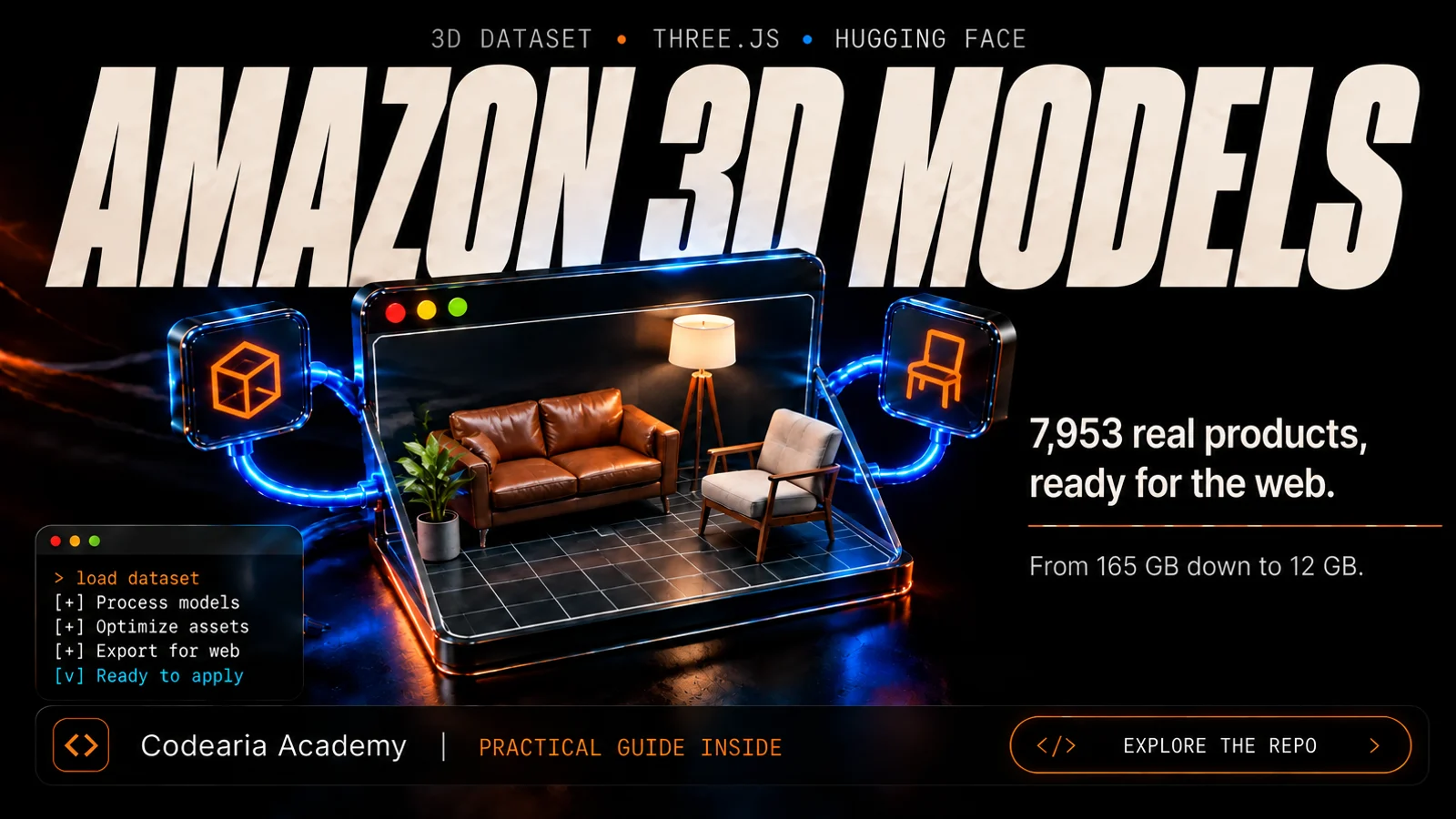 Service3D-модели товаров AmazonAlmost eight thousand real Amazon products in 3D, slimmed down for the browser: sofas, chairs, lamps, rugs. Grab a ready-made item for your storefront, website or game instead of modelling it from scratch.
 GitHub repository266kБесплатный AI-стекA working kit instead of paid AI subscriptions: an agent, a model, voice, video, notes and learning. A free program covers each role, and you can start with just one.
$ ls articles/ --related

Comments