$ cat articles/claude-features-most-people-never-use.md
How-to· Automation· Content· 16 min read· Nov 3, 2026
Claude features you never get around to: what to turn on today (14 features and prompts)
Open a chat, ask, copy the answer, close it. That's how most people use Claude. Here are 14 features: where to turn each on and a prompt to try it in 5 minutes.
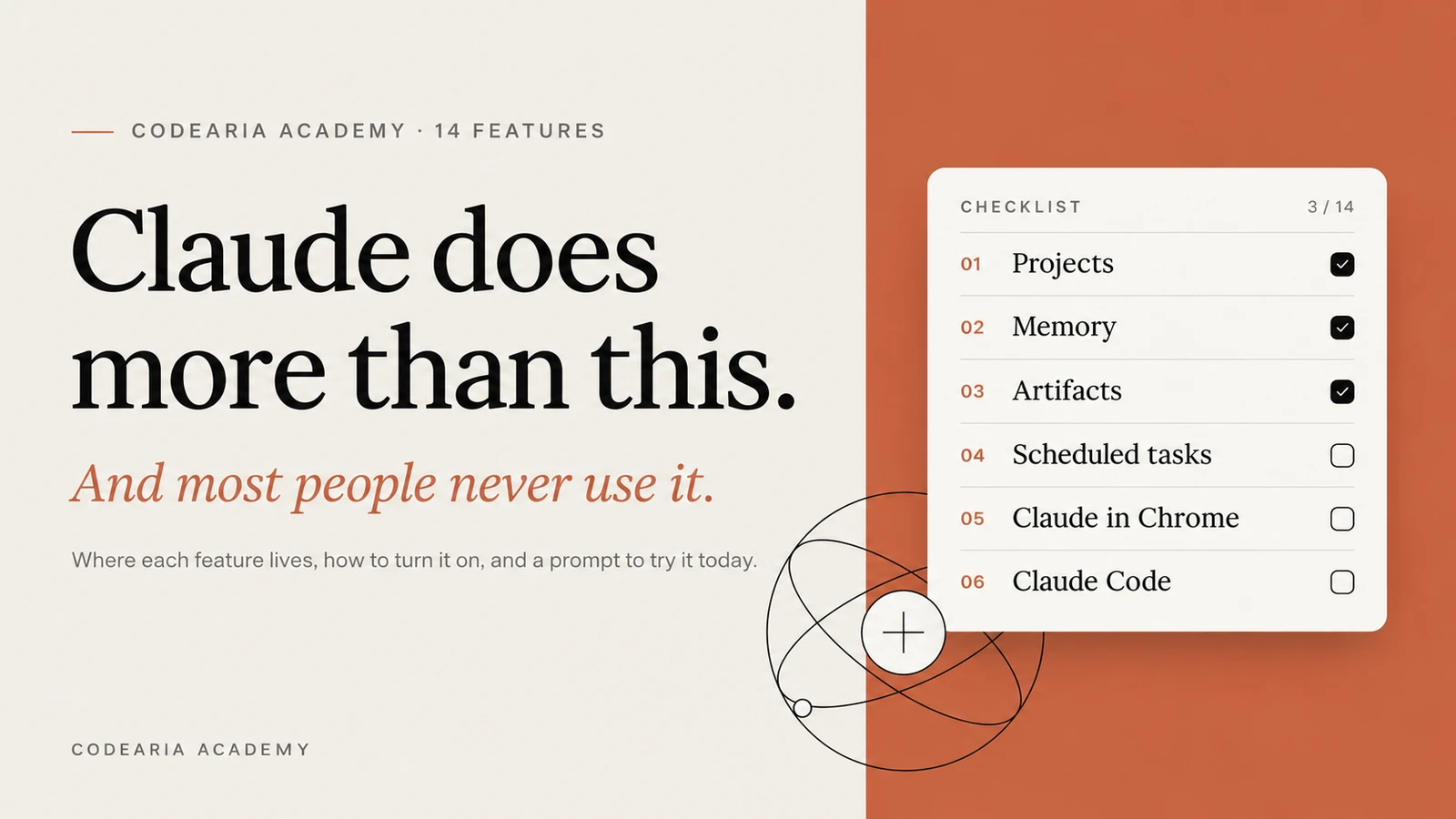
Most people use Claude like a search engine with nicer answers: ask a question, copy the text, close the tab. Yet the same app has projects that remember your documents, memory about you that carries across chats, mini apps right inside the conversation, work in your browser and with files on your computer, scheduled tasks, and connections to your email and calendar. Below are 14 of these features: where to turn each one on and a ready prompt to try it in a couple of minutes. Start with one, not all of them at once.
You usually open Claude when you need something right now.
You type a question. You explain who you are and what you do. You copy the answer. You close it.
Tomorrow it starts over: a new chat knows nothing about you or about yesterday's conversation.
The model isn't the problem. Most of what Claude can do is simply switched off or tucked away in the settings, and people rarely get around to it.
We grouped 14 features into four parts: what's already in the chat, how to change Claude's role, what it does outside the chat, and a couple of things for developers. Each one comes with a prompt you can copy as is. By the first feature alone, you'll stop introducing yourself to every new chat.
Part 1. What's already in the chat
1. Projects: stop explaining the same thing
A project is a folder for chats with shared memory. You upload documents once and write standing instructions, and Claude keeps them in mind in every chat inside that project. Come back a week later and it still knows what you're working on.
You create one in the left menu: "Projects" → "New project". If you've never used them, start here.
You help me run [what you do: a travel blog / an online store / a course I'm taking].
My readers or customers: [who they are and what they already know].

When I send you a topic or material:
1. Suggest 3 unexpected angles to approach it from.
2. Tell me what the material is missing to be useful.
3. Suggest how to tell it as a story rather than a summary.

Write short and direct, no corporate speak.
Don't start your answer by praising the question.
Replace: the square brackets with your work and your audience. Result: every new chat in the project answers "in context" right away, no intro needed.
2. Memory: let it know who you are
Projects remember documents, and memory remembers you: what you do, what you're working on, how you like to be spoken to. You turn it on in the settings, in the memory section. From there Claude picks up the important things on its own, but you can speed things up by telling it about yourself directly.
Remember this about me so I don't have to repeat it in every chat:

My name is [name], I'm a [your job] at [company or project].
Right now I'm mostly busy with [what].
My customers or readers: [who].

What works for me: [short / detailed / casual / formal].
What annoys me in answers: [long intros, lists, unnecessary caveats].

Treat this as default context until I say otherwise.
Replace: everything in brackets. Result: in a brand new chat, Claude already knows who it's talking to.
3. Artifacts: apps right inside the conversation
Many people are sure Claude only writes text. Ask it for a habit tracker, a calculator, a small game or a dashboard with charts, and it will build a working thing in a window next to the chat. You can click around in it, use it and share it as a link. No need to copy code anywhere else.
Build a habit tracker I can use right here.

5 habits, I check off each one once a day.
For each, show the streak for the last 7 days.
Miss a day and the streak resets.

Dark background, minimal details, a short pleasant animation when I check something off.
Data shouldn't disappear after reloading the page.
Result: a tracker that works in a window next to the conversation.
4. Extended thinking: let it think before answering
The toggle is right in the input box. With it on, Claude first breaks the task down step by step, and you can expand and read its reasoning. You don't need it for "how many kilometers is 5 miles". For a decision with lots of inputs, the difference shows right away. Try it yourself: ask the same question with the toggle on and off.
I need to choose between two options. Don't rush your answer.

Option A: [describe]
Option B: [describe]
My constraints: [money, deadlines, what matters most to me]

Before answering, work through:
- the consequences of each option in a month and in a year;
- what I'm overestimating or underestimating because of emotions;
- what information is missing that would change the decision;
- which option does less damage if everything goes wrong.

Then give your recommendation and explain why.
Result: not "both options are good", but a choice with reasons.
Part 2. Give Claude a role
By default Claude is a polite assistant that looks for the good in your idea. Give it a specific role at the start of a chat, and the questions it asks change, along with what it's willing to let slide. Here are three roles we suggest keeping at hand.
5. A mentor with no filter
When a plan needs testing, praise is useless. This prompt strips the politeness from Claude: it looks for weak assumptions and the point where the plan breaks.
You are a mentor who has seen dozens of failed projects and knows the typical mistakes.
Your job is not to cheer me on but to find blind spots before a mistake gets expensive.

Rules:
- If you think I'm wrong, say so directly and explain why.
- Show me what I'm not seeing, especially what I don't want to think about.
- Ask the uncomfortable questions I haven't asked myself.
- No softeners like "on the other hand".
- At the end, name the one thing that matters most for me to think through.

Here's the idea: [idea].
6. Devil's advocate
The decision is made, and you've convinced yourself of the upsides. Now is exactly the time to ask Claude to build the strongest case against it. Five minutes before launch, not after.
I've made a decision and want to hear the strongest argument against it before I start.

Decision: [what exactly I'm doing]
Why I think it's a good idea: [reasons]
Objections I've already considered: [list]

Build the best argument AGAINST, no upsides.
Find assumptions I treat as fact that could be wrong.
Describe the 3 most realistic ways this goes wrong.
7. Rehearsing a difficult conversation
Asking for a raise, turning down a client, telling a partner something unpleasant. You know what you'll say, but not what they'll answer. Claude will play the other person seriously: object the way they would and pick at weak arguments.
Help me rehearse a difficult conversation. You play the other person.

Who they are: [boss / client / partner]
What I need to say or ask for: [the point]
What I'm afraid of: [what reaction]
What they're like: [personality, how they usually react, what matters to them]

Answer the way they would, not the way I'd like.
After each exchange, step out of the role for one line: what worked, what didn't.
At the end, give a debrief: what went well, what to change before the real conversation.
Start in character and wait for me to speak first.
About fifty more ready prompts like these for different tasks are collected in our guide Prompts for Claude.
Part 3. Claude outside the chat
8. Claude in Chrome: it sees the same page you do
The Chrome extension gives Claude access to the open tab. It reads the page, clicks buttons, fills in forms and follows links, while you describe the task in plain words. Install it from the Chrome Web Store: search for Claude, sign in and open the side panel from the icon. We showed how this works alongside other agents in our article on Claude Code and ChatGPT in one browser.
I'm on a job listings page.
Go through every job on the page and write down: title, company, salary (if listed) and the 3 main requirements.
Put it in a table, sorted by salary from highest to lowest.
If there are more pages, go through those too.
9. Files on your computer
In the browser version, Claude can't see your computer, so you have to paste everything by hand. In the desktop app you can connect a folder: Claude reads real files, edits documents, creates new ones and tidies up folders. You can hand off a long task in full, get on with your own work and pick up the finished result later. This used to be a separate app called Cowork; now it's built into Claude itself.
10. Scheduled tasks
Normally Claude only works while it's open. A scheduled task is something you set up once, and from then on it runs on its own: every morning, on Mondays, once an hour. You set it up just by asking in the chat.
Create a scheduled task: weekdays at 8:00.
1. Find the main news in [your field] from the last 24 hours.
2. Pick the 5 most important: surprising ones or ones that actually change the work.
3. For each: a headline, 2 sentences on the gist and why it matters to me.
4. Save it as "digest-[date]".
Keep it dry and to the point, readable in 3 minutes.
Result: a ready digest waiting for you every morning.
11. Connectors: email, calendar, documents
On its own, Claude can't see your email or calendar. Connect them in the settings, in the connectors section (Gmail, Google Calendar, Drive, Notion and many others), and it can search and cross-reference data between them without any copying. If you want to connect something of your own, start with our MCP servers page: connectors run on the same technology.
Look at my email for this week and my calendar for tomorrow.
What meetings do I have? Which emails do I need to deal with before those meetings?
Draft replies to the two most urgent ones.
12. Skills: new abilities, like apps on a phone
A skill is a package of instructions that teaches Claude a specific type of work: making presentations, working with PDFs, writing a report in your company's template. You install it once and never explain it again. A phone works without apps too, but with the right ones it can do much more. There are built-in skills, skills from your team, and you can ask Claude to build a new one from a process you repeat often. We covered how skills work and where to find ready ones in our guide to Claude Skills.
Part 4. For people who write code
13. Claude Code and the CLAUDE.md file
Claude Code works right inside your project: it reads code, writes new code, runs tests, reads the errors and fixes things until everything works. It's available in the terminal, in the browser, in the desktop app and on your phone, plugs into VS Code and JetBrains, and can review pull requests on GitHub without you.
To avoid repeating your rules to it, put a CLAUDE.md file in the project root. Claude reads it on its own at the start of every session.
# Project: online clothing store

## Code rules
- TypeScript, strict mode. No any.
- Small components, one file = one component.
- Run tests and the linter before committing.

## Interface copy
- Address the user formally, keep it short, no exclamation marks.
- Prices always include the currency.

## Where things live
- Pages: src/app
- Shared components: src/components
- Don't touch: src/legacy
Replace: the rules with your own; you can keep adding to them as you work. Result: every new session starts with your rules instead of from scratch.
14. Prompt caching in the API
If you call Claude through the API and send the same big chunk in every request (a long instruction, a reference document, code), you pay to process it again every time. The cache stores that chunk on the server, and later requests pull it from there: those tokens cost 10 times less, and the answer comes back faster. By default the cache lives for 5 minutes and is extended with every request; there's also a one-hour option. All you need is to mark the block:
"system": [{"type": "text","text": "[long instruction or reference document]","cache_control": { "type": "ephemeral" }}]
Three more things few people know about
Photo to table. Claude understands images. A photo of receipts becomes a table with dates and amounts, a screenshot of an error becomes an explanation and a fix, a photo of the whiteboard after a meeting becomes a task list, a screenshot of a site you like becomes a layout.
Here's a photo of 8 receipts.
From each one, pull out: date, store, amount and VAT.
Make a table: one row per receipt, total at the bottom.
Video editing without an editor. In Claude Code and in the app with file access, Claude cuts video: it writes and runs commands for ffmpeg, the program that runs inside many video editors. Trim, join, remove pauses, turn horizontal video into vertical 9:16 for Reels, compress, make a GIF, process fifty clips the same way. Creative editing needs an editor; for routine work, one request is enough.
Here's a video. Please:
1. Trim it from 0:12 to 1:45.
2. Convert it to vertical 9:16 with the person centered in the frame.
3. Compress it to under 20 MB.
4. Separately, make a GIF from the first 5 seconds.
Give me back both files.
Mockups without Figma. Describe a landing page, a presentation or an app screen, and Claude will build it so you can tweak it and export it in the format you need. For someone without design experience, that saves hours.
Names and menu locations change
The set of features depends on your plan: some (scheduled tasks, working with files, Claude Code) are available on paid plans. Anthropic often renames settings sections and adds new capabilities. The list and names are current as of November 3, 2026; check the app for the latest.
A plan for tonight
- 1
5 minutes
Turn on memory in the settings and tell Claude about yourself with the prompt from feature 2.
- 2
10 minutes
Create a project for your main task, upload 2–3 documents and paste in the instructions from feature 1.
- 3
5 minutes
Ask about one hard decision with extended thinking on and off, and compare the answers.
- 4
10 minutes
Hand a decision you've already made to the devil's advocate.
- 5
10 minutes
Install Claude in Chrome and try it on a page where you usually copy things by hand.
- 6
5 minutes
Set up one scheduled task for the morning.
Claude used to be a window where you typed questions. Now it's an assistant that remembers who you are, browses sites on its own and puts a digest on your desk every morning.
You don't need to set up all 14 features in one evening. Pick one, the one that fixes your most frequent annoyance, and turn it on today. Just knowing all this exists is half the job.
Sources7expand
- Anthropic, «Collaborate with Claude on Projects», 25.06.2024 — https://www.anthropic.com/news/projects
- Anthropic, «Bringing memory to teams», 2025 — https://www.anthropic.com/news/memory
- Anthropic, «Piloting Claude in Chrome», 2025 — https://www.anthropic.com/news/claude-for-chrome
- Anthropic, «Claude can now connect to your world», 2025 — https://www.anthropic.com/news/integrations
- Anthropic, «Introducing Agent Skills», 2025 — https://www.anthropic.com/news/skills
- Claude Docs, «Manage Claude's memory» (CLAUDE.md), checked 03.11.2026 — https://docs.claude.com/en/docs/claude-code/memory
- Claude Docs, «Prompt caching», checked 03.11.2026 — https://docs.claude.com/en/docs/build-with-claude/prompt-caching
$ grep tools: articles/claude-features-most-people-never-use.md
Tools from this piece
Each has its own card: check date, stars and a short verdict.
 GitHub repository676Aura AutopilotAn agent that plays your game for you and hunts for bugs: it explores levels, checks a mechanic from a single sentence and writes a report. It installs as a plugin in Unreal, Unity and Godot and learns from every run. Open source, Apache-2.0.
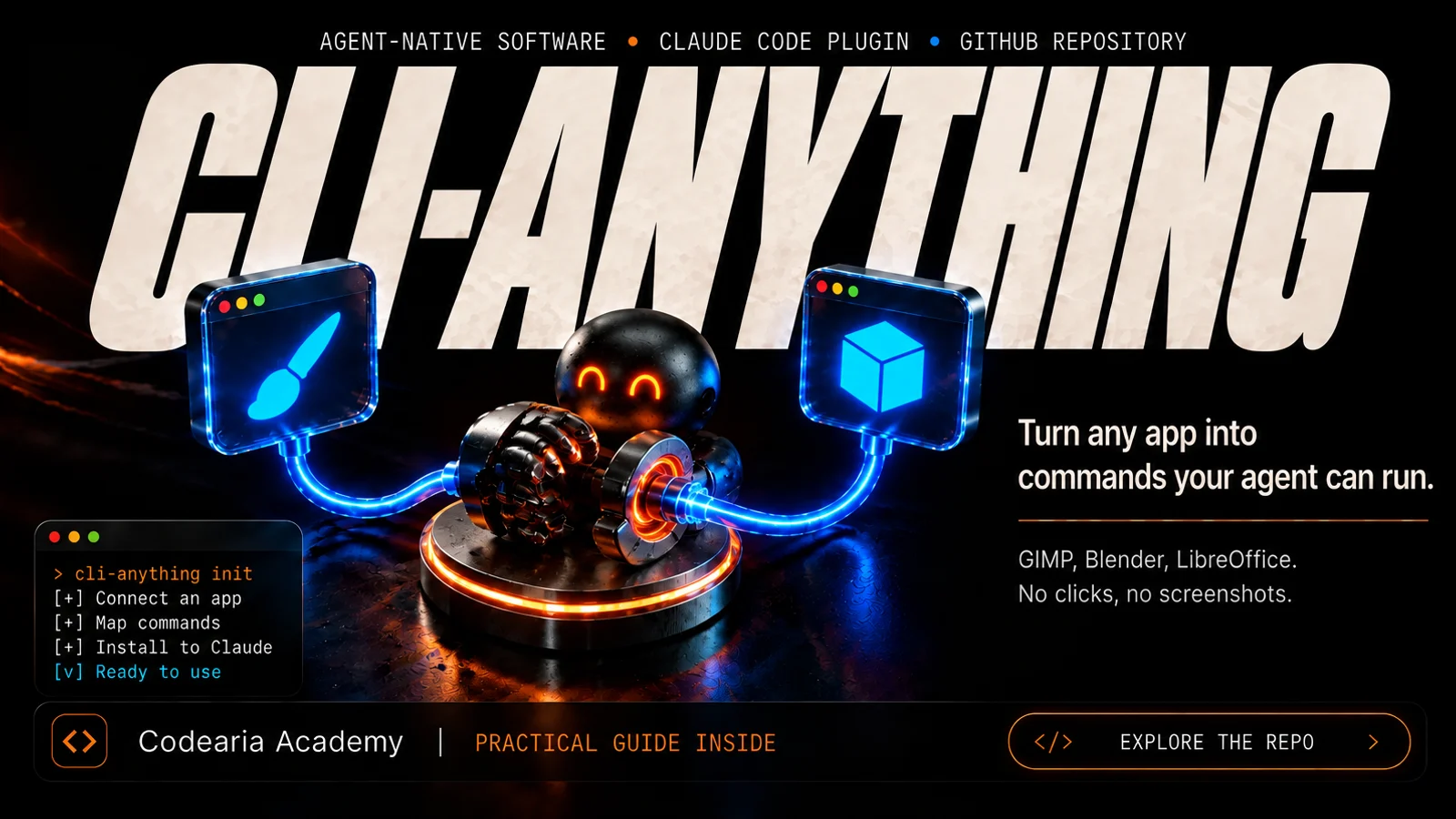 GitHub repository58kCLI-AnythingTurns an ordinary program like GIMP, Blender or LibreOffice into a set of commands an AI agent can use on its own, without screenshots or clicks. There is a catalogue of ready-made ones, and you can build your own with one command in Claude Code. Apache-2.0.
$ ls articles/ --related



Comments