$ cat articles/chatgpt-images-2-6-gif-saved-references.md
Explainer· Content· Design· 9 min read· Nov 5, 2026
Your own references and GIFs in ChatGPT: save yourself, your pet or a character once and bring them to life in pictures (5 steps)
Want a GIF of your cat without uploading the same photo every time? Save the character as a reference, call it with @name and animate it into a GIF. 5 steps.
ChatGPT can now remember your character and bring a picture to life. You upload a photo of yourself, your pet or a character you made up once, ask ChatGPT to save it as a reference and give it a name. After that you type @name in a request, and ChatGPT draws the same character in a new scene without another upload. The second addition: any picture can become a short looping animation, a GIF. Together this gives you your own stickers, a mascot for your page or greeting cards with the same character every time. It all works in regular ChatGPT on the web, in the desktop app and on your phone.
Picture this: your cat in twenty scenes. An astronaut, a pirate, a chef, falling asleep on the keyboard. And in every picture it's definitely him: the same white spot, the same folded ear. Then he starts blinking and wagging his tail in your family chat.
A week ago this didn't work. For ChatGPT, every request meant a new cat: the spot moved, the face got wider, and you couldn't make an animation without a separate app.
On November 4, 2026, OpenAI released Images 2.6. It brings two additions: saved references (a character ChatGPT remembers by name) and GIFs. Below are five steps that take you from one photo to your own sticker pack.
How it works
A reference is a saved photo of a character with a name. You upload a picture, ask ChatGPT to save it as «Pepper», and then in any request you write @Pepper. ChatGPT takes the look from the saved photo, the way an animator takes it from the character sheet pinned above the desk.
A GIF is a few frames that play in a loop. Messenger stickers and reactions are made of them. ChatGPT builds a GIF from a description or from a finished picture, and you can adjust the speed and individual frames.
Step 1. Save the character as a reference
What you need: ChatGPT on any plan and one good photo of the character. The face is fully visible, the light is even, nobody else is in the frame.
Open a new chat, attach the photo and send:
Save this character as a reference named [Name]. This is [who: my cat / my daughter / my character]. Remember the key features: [features: ginger, white spot on the chest, one folded ear].Pick a short name without spaces, you'll be typing it after @. List the features you'll check on every picture. If the character is made up, draw it in ChatGPT first and save the best version.
Step 2. Draw the character in a new scene
Open a new chat: that way you'll see that ChatGPT remembers the character without the photo.
Draw @[Name] in this scene: [where and what they're doing]. Style: [watercolor / cartoon / photo / pixel art]. Format: [square / vertical].For example: «Draw @Pepper in this scene: sitting in a pizza box on a rooftop. Style: cartoon. Format: square».
If a feature drifted, don't start over. Say it in one sentence: «The spot on the chest should be white, keep everything else». A targeted fix works better than a new long description.
Step 3. Turn the picture into a GIF
Turn this picture into a looping GIF: [what moves and how]. Don't change anything else in the frame, keep the background still.One animation, one motion: «the cat slowly blinks and twitches its tail», «the girl waves». The frames come out smoother that way. You can also start without a finished picture:
Make a looping GIF: @[Name] [action], [style] style, square, no text.A GIF is 2–3 seconds with no sound
Perfect for a sticker. But if you want your character to tell a story, with a voice, music and changing scenes, you need a video. In the Motion Video with AI course we show how to make one without a video editor or editing experience: you describe the idea, AI writes the scenes, and you get a finished MP4.
Step 4. Adjust the speed and frames
The first version is rarely perfect. In the finished GIF you can change the speed, save the file or share it. Is the motion jerky? Slow it down first, often that's enough. Is a specific moment broken? Describe it in the same chat:
In this GIF [what's wrong: the cat's tail disappears in the third frame]. Fix only that, keep the other frames and the speed as they are.Step 5. Make a sticker pack
This is where the two features add up: the reference keeps the character the same, the GIF brings it to life.
Let's make a sticker set with @[Name]. One by one, draw [number] looping GIFs, each separately: [emotion 1], [emotion 2], [emotion 3]. Same style for all: [style], white background, no text.Pick the reactions you're missing in chats: «happy», «shocked», «falling asleep», «approves». Save the GIFs to your device and send them like regular GIFs.
Two characters in one scene work too: «Draw @[Name 1] and @[Name 2] together: [scene]. Keep the features of both».
Good to know in advance
GIFs are still rolling out, so some people don't have them yet. You can't upload your own ready-made GIF and edit it, ChatGPT only edits what it made itself. OpenAI hasn't published limits per plan. Only save people as references if they agree to it. Terms as of November 5, 2026, check the current ones in OpenAI's help center.
What to make with it
Stickers with your pet. Steps 1 and 5, four emotions, half an hour.
A mascot for your page. A made-up character in every post: in a holiday hat, with a cup of coffee, holding a «sale» sign. Followers recognize it at first glance.
A bedtime story for a child. A toy as the reference and six scenes, one per chapter. The character stays the same from the first page to the last.
A work avatar. You in three styles: business photo, watercolor, cartoon.
This is only 10%
A sticker and a mascot are just the start. The same character can become the face of your content: talk in videos, run your page, bring in customers. This is where pictures from ChatGPT end and a system begins.
| GIF in ChatGPT | What comes next | |
|---|---|---|
| Length | 2–3 seconds | A video of a minute or longer |
| Sound | None | Voice, music, voiceover |
| Scenes | One motion | Story, transitions, titles |
| Regularity | Manual every time | Content on a steady flow |
No coding needed. Here's where to start:
Next step01. Motion Video with AIYour character in a real video: script, scenes, transitions, voice and music. No video editor, a finished MP4 in one evening.Open the course Next step02. AI Content FactoryVideos without a camera or a team, on a steady flow. Your mascot stops being a one-off picture and starts working for your page every day.Open the courseAll courses, one payment
Both courses above plus 11 more. Take them in any order, at your own pace.
- 13 courses: video, content, agents, automation
- AI mentor in every lesson
- Personal certificates
- New courses at no extra cost
$44.90one time
Get full accessNo subscription. Lifetime access, future courses included.
Before and now
Before, you uploaded the photo every time and explained what your cat looked like, and he still came out different. Now the character is saved once, answers to @name and can move.
Our take: of the two additions, references matter more than GIFs. Animation is flashier, but it's the memory of the character that turns one-off pictures into a series. And a series is content you can put on a steady flow. We show exactly how in the Motion Video with AI course.
Sources8expand
- OpenAI, «Images, upgraded: introducing ChatGPT Images 2.6», 04.11.2026 — https://x.com/OpenAI/status/2118124944928432327
- OpenAI, «GIFS! With ChatGPT Images 2.6…», 04.11.2026 — https://x.com/OpenAI/status/2118124953832935810
- OpenAI, «Images 2.6 is available today in ChatGPT and Codex across all tiers», 04.11.2026 — https://x.com/OpenAI/status/2118124966055223755
- OpenAI, «Introducing Images 2.6», 04.11.2026 — https://openai.com/index/introducing-images-2-6
- OpenAI Help Center, «Images in ChatGPT», checked 05.11.2026 — https://help.openai.com/en/articles/11084440-images-in-chatgpt
- OpenAI Developer Community, «Images upgraded: introducing ChatGPT Images 2.6», 04.11.2026 — https://community.openai.com/t/images-upgraded-introducing-chatgpt-images-2-6/1412901
- TestingCatalog, «OpenAI launches Images 2.6 with GIFs and image reference», 05.11.2026 — https://www.testingcatalog.com/openai-launches-images-2-6-with-gifs-and-image-reference/
- TheSwipeUp, «Here's how ChatGPT can now create animated GIFs from your images», 05.11.2026 — https://www.theswipeup.com/2026/11/heres-how-chatgpt-can-now-create.html
$ grep tools: articles/chatgpt-images-2-6-gif-saved-references.md
Tools from this piece
Each has its own card: check date, stars and a short verdict.
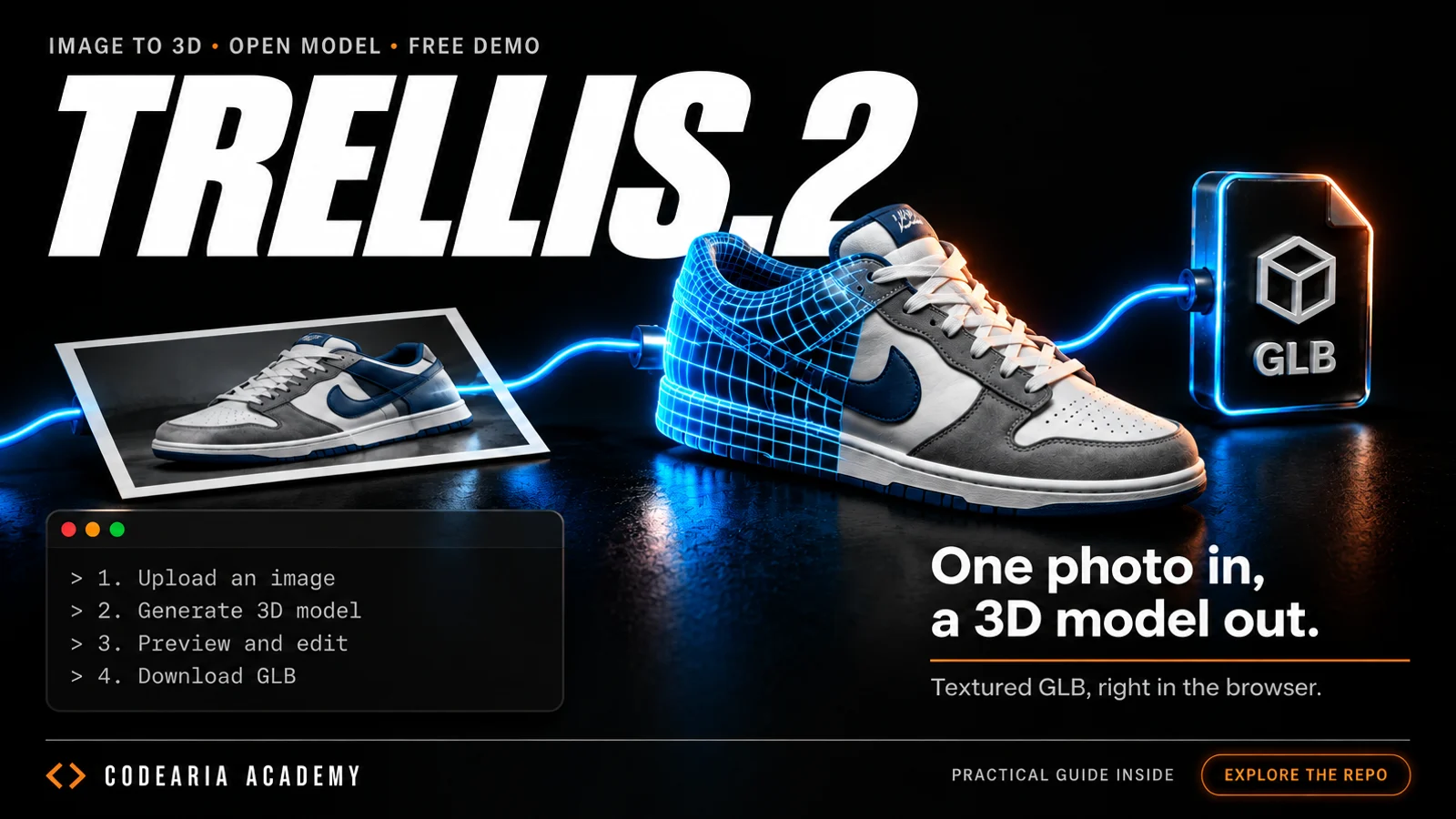 ServiceTRELLIS.2TRELLIS.2 by Microsoft turns a single photo of an object into a 3D model with materials and gives you a GLB file. The demo runs free in the browser, MIT licence.
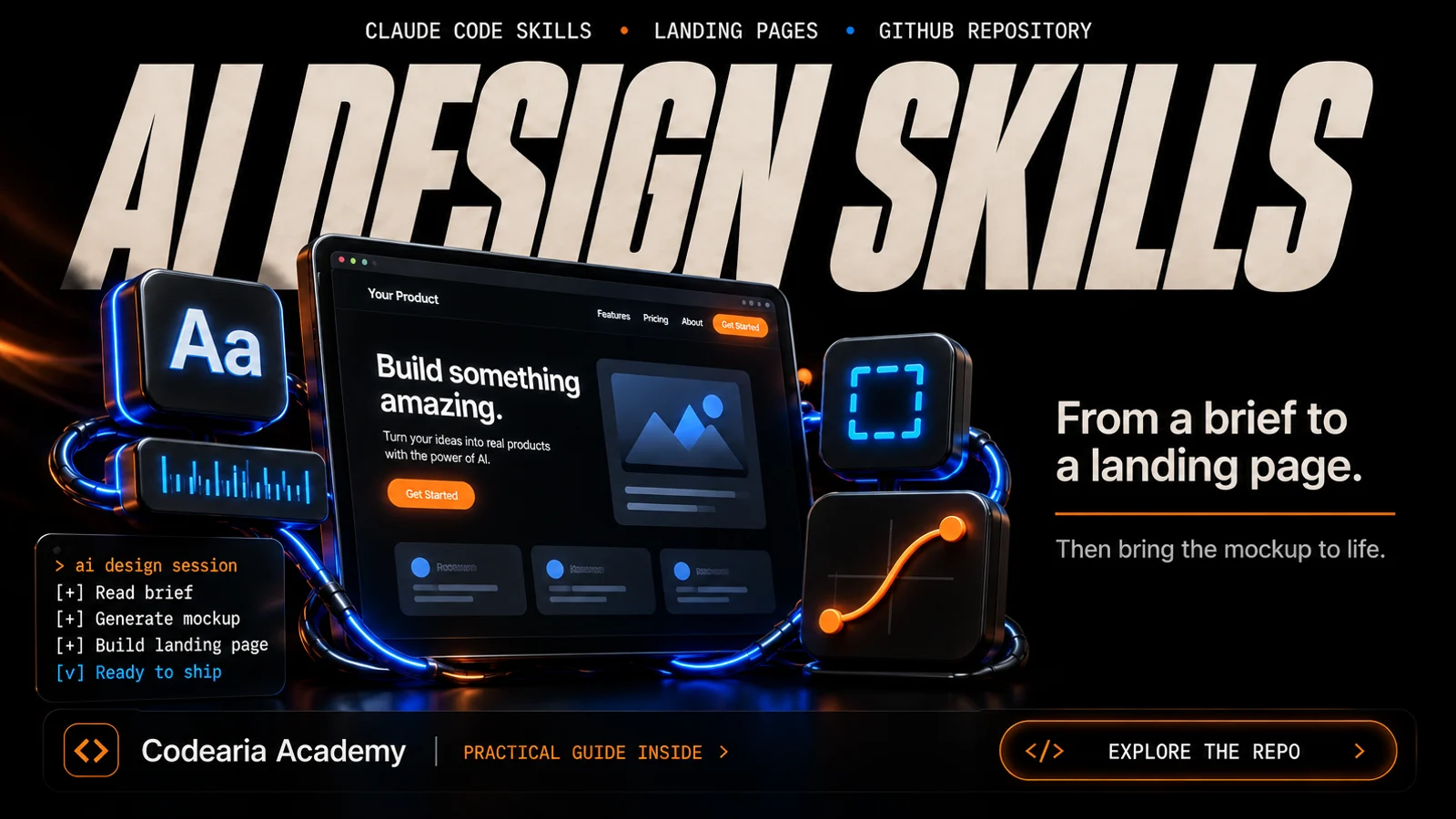 GitHub repository17kAI Design SkillsTwo MIT skills for Claude Code, Cursor or Codex: one takes a landing page from brief to strict visual system, one animates a Figma mockup into video and GIF.
$ ls articles/ --related
Comments