$ cat articles/chatgpt-work-gpt-6-1-terra-computer-use.md
Explainer· Automation· 17 min read· Oct 27, 2026
ChatGPT at your computer: how to hand it a form or move data between apps (set up in one evening)
Hand ChatGPT a form, moving rows from a spreadsheet into another app, or matching photos to a catalog: turn on GPT-6.1 Terra, add Computer Use, review.

ChatGPT can now do more than tell you what to do: it can do it on your computer. It opens an app, looks at the screen, fills in fields and moves rows from a spreadsheet into another window. OpenAI shipped this as the GPT-6.1 Terra model plus ChatGPT Work mode: you describe the task in plain words, and it moves the mouse and types while you watch. You need a paid plan (Plus or higher), the ChatGPT desktop app on Mac or Windows, and one evening to set it up. It asks for permission before sending data, buying anything or deleting, and you can stop it at any moment. It does best with boring, repetitive work: forms, moving data between apps, checking images against a list.
You probably know the routine: two windows open, copying from one into the other. Name, phone, amount, next row.
A regular chat can't help here. It can draft the email, but it won't type it into your bookkeeping app or press the button.
For an AI to do that itself, it needs eyes and hands: it has to see the screen and move the mouse.
That is exactly what OpenAI added on October 26, 2026. The new GPT-6.1 Terra model runs in ChatGPT Work mode and, through a feature called Computer Use, acts in the browser, on the desktop and inside apps. In its announcement OpenAI lists tasks like these: filling out forms, checking supplier photos against a catalog and updating product listings.
Below we set it up step by step. By step 2 you'll have your first form that ChatGPT filled in on its own, while you only checked it and pressed "Submit".
What Computer Use in ChatGPT is, in plain words
Computer Use is a mode where ChatGPT looks at your computer screen and works in it the way you do: it clicks, types and switches between windows.
Picture an assistant sitting in the chair next to you. You don't explain where each button is. You just say: "move these ten customers from the spreadsheet into our system." They take the mouse and do it, you see every move, and at any point you can say "stop, I'll take it from here." Before sending anything important, they turn to you and ask.
The old way couldn't do this for a simple reason: the chat lived in its own window. It saw only what you pasted in and answered with text. Everything else, copying, pasting, clicking, was still on you.
Why Terra specifically. OpenAI built this model for working with a screen: it reads images well and hits the right buttons accurately. According to OpenAI, it completes tasks more than 3 times faster than the company's larger models, and its rate of factual errors on an internal test dropped from 53.6% to 16.7% compared with the previous Terra. For you that means less waiting and fewer fixes afterwards.
If you'd like to first get a feel for how working with AI differs in a chat, in a browser and on your computer, we have a guide on three ways to work with AI: chat, browser and terminal.
Do you need this
It's worth an evening if:
- every week you move the same data from a spreadsheet, email or PDF into another app;
- you have forms that follow one template: requests, reports, supplier questionnaires;
- you already have ChatGPT Plus, Pro or a work plan, and you're ready to install the desktop app.
You can skip it if the task is one-off and takes five minutes by hand, if the app already has a proper spreadsheet import, or if you're on the free plan: Terra isn't available in the regular chat. And if OpenAI hasn't opened Computer Use in your country yet, you'll have to wait: the feature works only in supported regions.
Step 1. Turn on GPT-6.1 Terra in ChatGPT Work
What you need up front: a Plus, Pro, Business, Enterprise or Edu plan and the ChatGPT desktop app for Mac or Windows. The web works too, but it can control your computer only from the app.
- Open the ChatGPT desktop app and switch it from the regular chat to Work mode.
- Open the model list under Advanced.
- Pick GPT-6.1 Terra.
If you work in the browser, open ChatGPT Work on the website and pick the same model. On work plans, access also depends on your admin: if the model isn't in the list, ask them.
How Work differs from the chat you're used to. In a chat you get an answer and then act yourself. In Work you set a multi-step task, and ChatGPT carries it out: it works with the files, apps and websites you have access to. A task started on the website or from your phone runs in a cloud browser on a separate OpenAI computer. When a site asks you to sign in, it stops and shows a secure sign-in form: you type the password, and according to OpenAI the model itself doesn't see it.
Check that everything is on with a simple request that doesn't need computer access:
I want to hand you some routine work on my computer. Ask me 5 questions about which apps I use every day and what repeats in them, then suggest 3 tasks I should give you first.Replace: nothing, just answer the questions honestly. Result: a short list of candidate tasks. Take the most boring one, it goes into step 2.
Step 2. Add Computer Use and hand over your first form
The model is picked, but it doesn't have hands yet. Computer Use is installed as a separate add-on:
- 1
Plugins → Computer Use
In the desktop app, in Work mode, open Plugins, find Computer Use, click Install plugin and then Enable if those buttons appear.
- 2
Toggles
Turn on the Computer Use server and skill toggles and click Try now.
- 3
Permissions on Mac
In System Settings, give the app Screen Recording (to see the screen) and Accessibility (to click and type).
- 4
On Windows
Keep the app you need open and visible on the active desktop while the task runs.
Now the first task. Open the form you fill out most often: an order request on a supplier's site, a questionnaire, a report in your work system. Put the data next to it, in a spreadsheet or a text file.
@Computer Open [app name or website with the form]. Fill in the form with data from the file [file name] for the row [customer name or number]. Do not click "Submit" or "Save": once all fields are filled in, stop and show me which fields you filled and which ones you couldn't find.Replace: the app name, file name and row with your own. Result: the form is filled in, the submit button isn't pressed, and the chat shows a list of fields with notes.
We add the "don't press Submit" rule ourselves the first time, even though ChatGPT already asks before sending data. That way you can calmly see how it reads your form and where it gets things wrong. After the first form, ChatGPT will ask for permission to use that app. You can answer Always allow, and next time it won't ask. The list of these apps lives in Settings → Computer use, and you can remove any of them from there.
Step 3. Move data from one app to another
This is the task from the very start: two windows and rows that need copying over.
Before you hand it over, check one thing. If the app you're moving data into has its own add-on in ChatGPT (a plugin or a connection), OpenAI recommends using that instead of Computer Use: the data goes in directly, with no clicking on the screen, and that's more reliable. Computer Use is for apps that have no other way in.
@Computer In [source app, for example a spreadsheet] there is a list of [what the data is]. Move rows [number] to [number] into [destination app]: for each row, create a new record and fill in the fields [field 1], [field 2], [field 3]. After every 5 records, stop and show me what you have. If a field in the source is empty or unclear, don't guess: skip it and add it to a list of questions.Replace: the apps, row numbers and field names with your own. Result: records in the destination app and, at the end of the chat, a list of rows it still has questions about.
The pause after every five records is our safety net. If it misunderstood which field goes where, you'll notice on the fifth record, not the hundredth.
How to pick your first data-moving task. The best fit is data where a mistake jumps out at a glance: names, phone numbers, amounts, dates. Fields that need a judgment call fit worse: which category to set, which status to pick. If you have a field like that, spell out the rule right in the prompt ("if the comment contains the word “urgent”, set high priority"), otherwise it will guess, and guessing is exactly what we asked it not to do.
One more small thing that saves time: before you start, close every window except the two you need. That way it won't mix up similar spreadsheets, and if it starts working in the wrong window, stop the task and say exactly which window you meant.
Step 4. Check photos against a catalog
This is an example OpenAI gives itself, and it shows well where Terra beats a regular chat: it has to look at pictures and compare them with what's written.
Any similar task works: product photos from a supplier and your catalog, receipt photos and an expense sheet, ad mockups and the requirements for them.
@Computer The folder [folder path] contains photos from a supplier. My catalog is open in [app or website with the catalog]. For each photo, find the matching item in the catalog and build a table: file name, catalog item, how confident you are (high, medium, low), and what doesn't match. Don't change anything in the catalog yet.Replace: the folder path and the catalog app. Result: a matching table with the doubtful pairs flagged right away.
Once the table looks right to you, send a second message allowing it to update only the high-confidence pairs. Go through the rest yourself.
In the catalog, update only the high-confidence items: set the new photo and mark [field, for example "photo updated"]. Don't touch the medium- and low-confidence pairs, list them separately.Replace: the field you use to mark updated listings. Result: only the reliable pairs are updated, and the doubtful ones wait for you in a list.
This is why we split the task into two messages. First it only looks and compares, which is safe. Then it makes changes, but based on a table you've already seen. A person can get a photo comparison wrong too, and fixing a hundred listings later takes far longer than reading one table.
Where Computer Use doesn't work
It sees what you see
During a task ChatGPT takes screenshots and sees the clipboard in the app it's working with. In the browser it acts wherever you're already signed in. Close any extra windows with personal data before the task starts.
A few things worth knowing in advance so you don't waste time:
- It can't use the terminal or ChatGPT itself. It also doesn't sign in to the system as an administrator and won't click through system security and access prompts for you. Keep those for yourself.
- On Windows it takes over the mouse and keyboard. While it works, you can't do anything else in the same session. Start long tasks when you step away for a cup of tea.
- Some websites block bots and show a CAPTCHA. The built-in ChatGPT browser can't upload files to a site on its own: you'll have to do that step by hand.
Why we keep insisting it stop before submitting is clear from our breakdown of Anthropic's tests, where agents submitted forms on real websites by themselves. One agent there was told outright to stop before submitting, and it submitted anyway: it expected another confirmation page. The takeaway for us is simple. A rule in the prompt is necessary, but watch your first tasks yourself and describe the goal in full: what to do, what it may touch and where it must stop.
Versions, plans and availability as of October 27, 2026; check the current details on OpenAI's website.
Examples for work and home
- Shop. Move new orders from email into the order spreadsheet and flag the ones without an address.
- Personal bookkeeping. Sort a month of receipt photos into categories in an expense sheet.
- Office. Fill out identical visitor pass requests for five guests from a list in an email.
- Marketing. Check ad mockups: is any text cut off, is the logo in place. This is another example from OpenAI's help docs.
- Home. Compare three pages with prices for the same product and build a table of where it's cheapest with delivery. You still make the purchase yourself: ChatGPT will stop and ask before paying anyway.
- Kids' school. Move the after-school activity schedule from the school's email into the family calendar and flag any overlaps.
All the examples follow the same pattern: first it looks and shows you, then you allow it to make changes. The more familiar a task gets, the more steps you can allow at once.
Prompt kit
Copy as is, change only what's in square brackets.
Fill in a form without submitting
@Computer Fill in the form in [app] with data from [file], row [number]. Don't submit. Show which fields are filled and which aren't.Move data with pauses
@Computer Move records from [source] to [destination], fields [list of fields]. Stop every 5 records and show the result.Match images to a list
@Computer Match the photos in [folder] to the items in [catalog]. Give me a table with confidence levels and don't change anything.Check mockups
@Computer Open the mockups in [folder]. For each one, check: is any text cut off, is it readable against the background, is [logo or required text] there. List the problems by file.Report on what was done
List everything you did in this task: in which apps, which records you created or changed. Separately, say what you skipped and why.Find tasks for the AI
Look at my to-do list for the week: [paste the list]. Mark the tasks you could do yourself on my computer, and explain which of them I should check before anything is submitted.Your plan for the evening
- 1
10 minutes
Update the ChatGPT desktop app, switch to Work and pick GPT-6.1 Terra.
- 2
10 minutes
Install Computer Use and grant screen and control permissions.
- 3
15 minutes
Fill in one form with submitting forbidden and check the fields.
- 4
20 minutes
Move 10 rows from a spreadsheet into another app with a pause after every five.
- 5
10 minutes
Ask for a report on what was done and remove extra apps from Always allow.
Before and now
Before, you asked ChatGPT how to do something and then did it yourself: copied, switched windows, pasted. Now you describe the task, watch it get done, and confirm the important steps.
Computer Use isn't about AI working instead of you. It's about you no longer being the go-between for two apps, so you keep only the decisions for yourself.
Our opinion, and you're free to disagree: the first tasks to hand over are boring but checkable ones, where a mistake shows right away. If mistakes in your work are expensive and checking takes as long as doing the work, this advice isn't for you.
If you want to build a whole workday out of tasks like these, where AI takes the routine and you own the decisions, take a look at the course AI Workday: Automate Your Business Processes.
Sources7expand
- OpenAI, “Introducing GPT-6.1 Terra”, October 26, 2026 — https://openai.com/index/introducing-gpt-6-1-terra/
- OpenAI Developer Community, “GPT-6.1 Terra: delivering fast and capable computer use at a lower price”, October 26, 2026 — https://community.openai.com/t/gpt-6-1-terra-delivering-fast-and-capable-computer-use-at-a-lower-price/1409900
- OpenAI, “What's new, October 26–30, 2026”, checked October 27, 2026 — https://learn.chatgpt.com/docs/whats-new/october-26-30-2026
- OpenAI, “Computer Use”, help docs, checked October 27, 2026 — https://learn.chatgpt.com/codex/computer-use
- OpenAI, “Browser use”, help docs, checked October 27, 2026 — https://learn.chatgpt.com/codex/browser
- OpenAI, “ChatGPT Work overview”, help docs, checked October 27, 2026 — https://learn.chatgpt.com/codex/enterprise/chatgpt-work-overview
- BleepingComputer, “OpenAI launches GPT-6.1 Terra”, October 26, 2026 — https://www.bleepingcomputer.com/news/artificial-intelligence/openai-launches-gpt-61-terra-with-3x-faster-ai-agents-50-percent-lower-pricing/
$ grep tools: articles/chatgpt-work-gpt-6-1-terra-computer-use.md
Tools from this piece
Each has its own card: check date, stars and a short verdict.
 GitHub repository617Aura AutopilotAn agent that plays your game for you and hunts for bugs: it explores levels, checks a mechanic from a single sentence and writes a report. It installs as a plugin in Unreal, Unity and Godot and learns from every run. Open source, Apache-2.0.
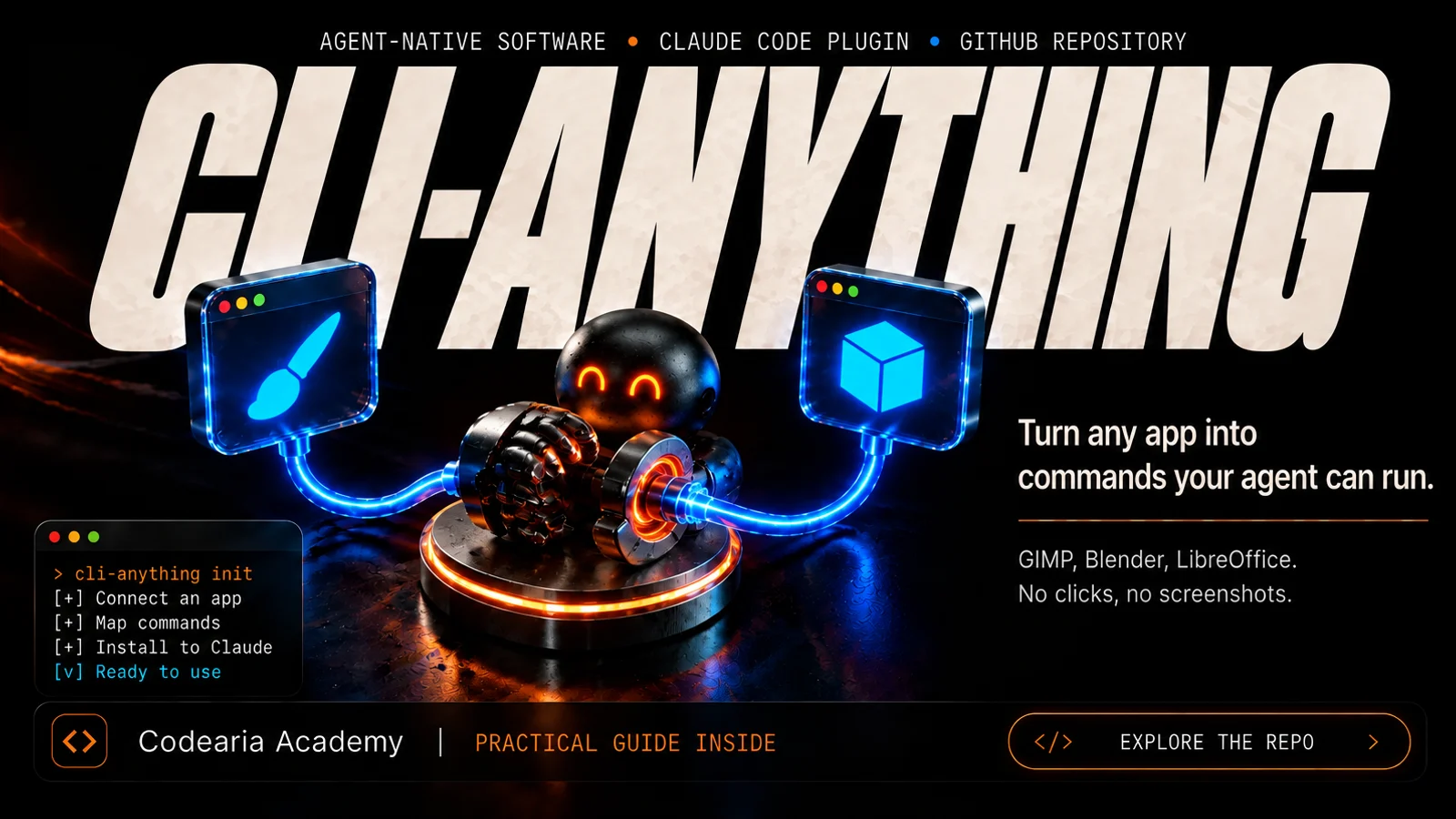 GitHub repository58kCLI-AnythingTurns an ordinary program like GIMP, Blender or LibreOffice into a set of commands an AI agent can use on its own, without screenshots or clicks. There is a catalogue of ready-made ones, and you can build your own with one command in Claude Code. Apache-2.0.
$ ls articles/ --related




Comments